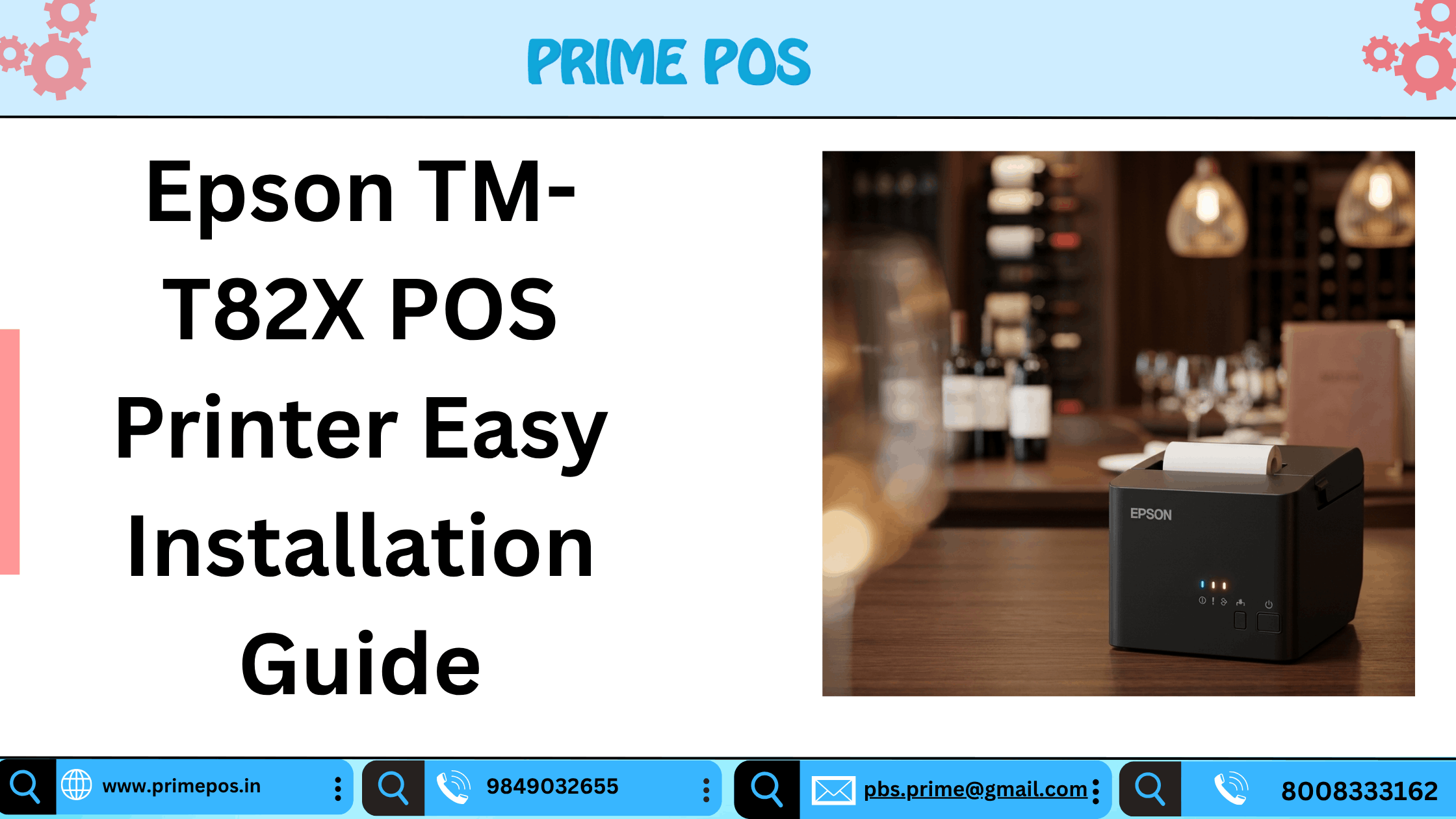
Setting up your Epson TM-T82X POS printer doesn’t have to be complicated. Whether you’re installing it for a retail store, restaurant, or billing counter, this guide will walk you through the entire process quickly and clearly.
At Prime POS, we help businesses get up and running with reliable billing solutions. If you need assistance, feel free to contact us anytime.
What’s Inside the Box
Before starting, make sure you have everything:
- Epson TM-T82X Printer
- Power Adapter & Cable
- Interface Cable (USB / Ethernet depending on model)
- Paper Roll
- Setup Guide
Step 1: Connect the Hardware
- Place the printer on a stable surface near your billing system.
- Connect the power cable to the printer and plug it into a power source.
- Attach the interface cable:
- USB: Connect directly to your computer
- Ethernet: Connect to your router/network
- Turn on the printer using the power button.
Step 2: Load the Paper Roll
- Open the top cover of the printer.
- Insert the thermal paper roll properly (paper feeding from bottom).
- Pull a small portion of paper out.
- Close the lid firmly until it clicks.
Step 3: Install Printer Drivers
To ensure smooth operation, install the correct drivers:
- Visit the official Epson support website.
- Search for TM-T82X driver.
- Download the driver compatible with your OS (Windows/Linux).
- Run the installer and follow on-screen instructions.
Step 4: Configure the Printer
For USB Connection:
- The system usually detects the printer automatically.
- Go to Control Panel → Devices & Printers.
- Set Epson TM-T82X as default printer.
For Ethernet Connection:
- Print a network status sheet (hold feed button while powering on).
- Note the IP address.
- Add printer manually using IP address in system settings.
Step 5: Test the Printer
- Press and hold the Feed button, then power on the printer.
- A test print will confirm everything is working correctly.
Basic Troubleshooting
Printer not printing?
- Check power and cable connections
- Ensure paper is loaded correctly
- Verify driver installation
Red error light blinking?
- Open cover and reload paper
- Check for paper jams
Not detected on network?
- Confirm IP address
- Restart router and printer
Shop with Prime POS
Looking for genuine Epson printers and complete POS solutions?
Shop with Prime POS for trusted products, installation support, and after-sales service.
🌐 Visit: www.primepos.in
📞 Contact: 8008333162
📧 Email: pbs.prime@gmail.com
Why Choose Prime POS?
- Expert installation support
- Genuine POS hardware
- Quick troubleshooting assistance
- Affordable pricing for businesses
Final Thoughts
The Epson TM-T82X is a reliable and efficient POS printer designed for high-speed billing. With the right setup, you can ensure smooth daily operations without interruptions.
If you need help with installation, configuration, or bulk purchase, Prime POS is here to assist you every step of the way.
Post Tags :
- BARCODE SCANNER DEALERS IN TELANGANA
- EPSON L130 PRINTER DEALERS IN HYDERABAD
- EPSON PRINTER DEALERS IN HYDERABAD
- EPSON PRINTER DEALERS IN VIJAYAWADA
- EPSON THERMAL PRINTER DEALRS IN VIJAYAWADA
- EPSON THERMAL PRINTER DEALRS IN VIZAG
- EPSON THERMAL PRINTERS DEALERS
- EPSON TM-M30 PRINTER DEALERS IN HYDERABAD
- EPSON TM-M30 THERMAL PRINTERS
- Epson TM-m30III Thermal Receipt POS Printer
- Epson TM-T82III POS Printer (USB + Serial)
- Epson TM-T82X POS Printer
- Epson TM-T82X POS Printer (USB + Serial)
- Epson TM-T88VI Thermal POS Receipt Printer
- EPSON TM82 THERMAL PRINTERS IN HYDERABAD
- Remove term: Epson TM-T82III POS Printer (USB + Serial) Epson TM-T82III POS Printer
- THERMAL PRINTER PRICE
- THERMAL PRITNERS DEALERS IN HYDERABAD